
Printing solutions
Looking for a printer, copier or multifunction device for your business? Printing may seem like a simple purchase, but the wrong choice shows up every day: queues at a slow device, paper jams, expensive consumables, scans that end up in the wrong place or confidential pages left on the output tray. Computech helps you choose the right devices for the way your office actually works and compare options from different manufacturers on the factors that matter.
What to look for
A good business printer should:
- Handle the volume of your office and print quickly from several devices and users
- Scale as your business grows
- Balance purchase price, running costs, features and quality
- Be economical to run, in energy and in ink or toner
- Offer fast printing without sacrificing quality
Understanding your printing needs
Before comparing models, it helps to understand how your office prints today. The main questions are:
- Volume: roughly how many pages are printed and copied each month, and how much of that is colour?
- Users: how many people print, and are they in one room, on several floors or in different locations?
- Document types: everyday office documents, presentations, brochures, labels, envelopes or large formats?
- Paper sizes and finishing: do you need A3, double-sided printing, stapling or booklet finishing?
- Scanning: how often do you scan, and where should scanned documents go?
- Mobile and remote printing: do people need to print from laptops, phones or home?
Answering these questions avoids two common mistakes: buying a small device that wears out quickly under heavy use, or buying a large device whose capacity is never used.
Types of devices
Laser and inkjet printers
Laser printers are usually the standard choice for offices that print a lot of text, because they are fast and produce sharp results. Business inkjet devices have improved considerably and can offer good colour quality and low energy use. The right choice depends on your volume, the type of documents and the running costs of each model.
Multifunction devices
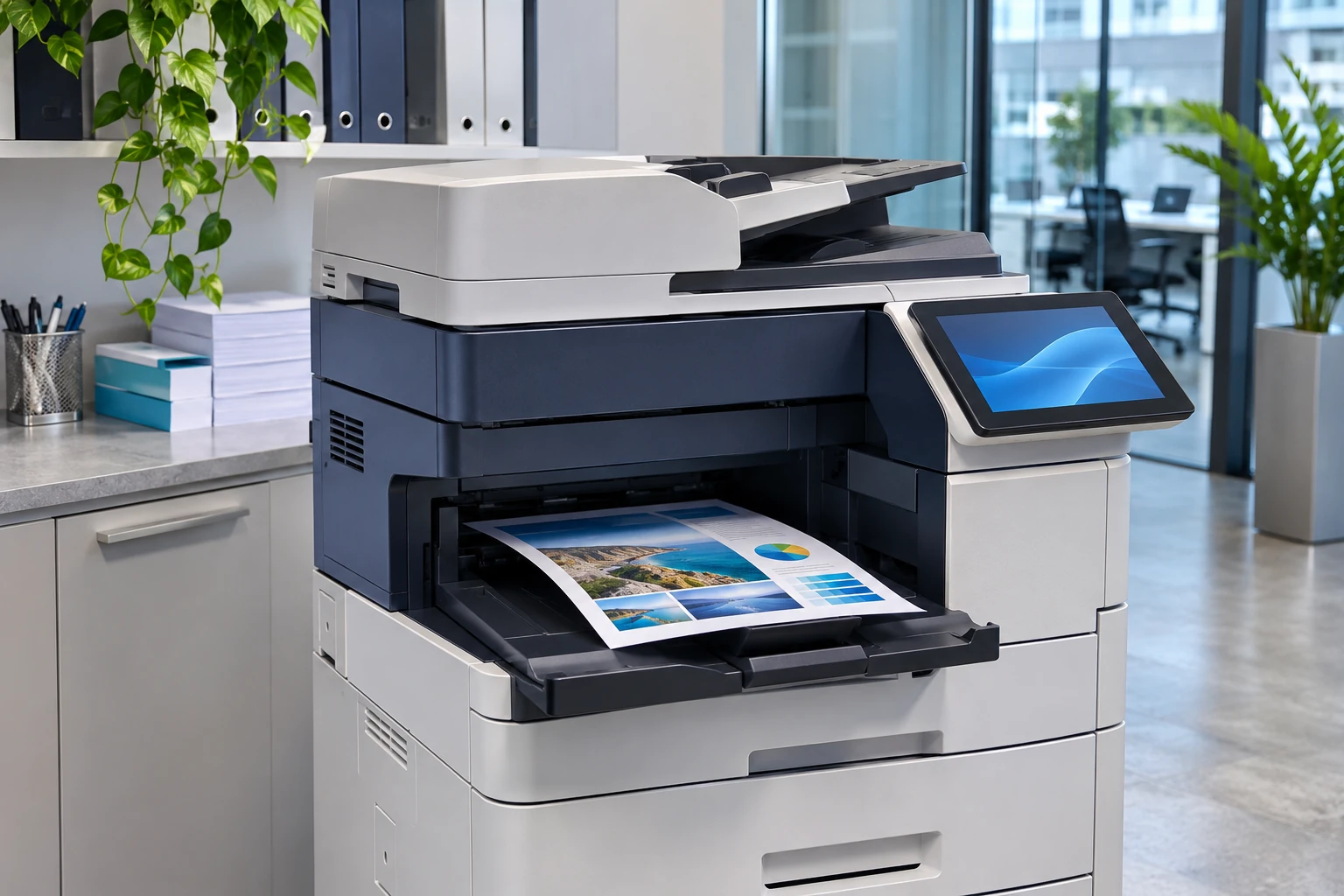
All-in-one devices that print, copy and scan save money compared with buying separate devices, and save space in smaller offices. Larger multifunction devices can also scan directly to e-mail or shared folders, handle large paper capacities and offer finishing options. If you need top print quality for specific work, a dedicated single-function printer may be the better choice.
Specialist devices
Some work needs specialist equipment, such as label printers, receipt printers, large-format printers for drawings and posters, or high-speed document scanners. We help you decide whether these are needed and how they fit with your other devices.
Running costs
The purchase price of a printer is often small compared with what it costs to run. When comparing devices, consider:
- The cost per page for black-and-white and colour
- The yield and price of ink or toner cartridges
- Other consumables, such as drums, maintenance kits and waste toner containers
- Energy consumption, including in standby
- Expected lifetime and recommended monthly volume
- The availability of parts and consumables over time
A device that is cheap to buy but expensive per page can cost more within the first year than a better-suited model.
Fewer, better devices
Many offices have more printers than they need: a small printer on several desks, an old copier in the corridor and a scanner that nobody remembers how to use. Replacing scattered personal printers with a few well-placed shared devices often reduces costs, simplifies supplies and makes support easier. Personal devices still make sense in some cases, for example for confidential work or for people who print constantly.
Scanning and document workflows
Printing is only half the picture. Many organisations scan invoices, contracts, delivery notes and forms every day. A well-configured multifunction device can send scans directly to the right person or folder, in a searchable format, with consistent file names. This reduces manual work and makes documents easier to find. Where scanned documents feed into other systems, such as accounting or document management, we consider how the device fits into that workflow.
Security and confidentiality
Printers are network devices and should be treated as such. Good practice includes:
- Changing default administrator passwords and keeping firmware up to date
- Disabling services and features that are not needed
- Using secure release, so that documents are printed only when the user is at the device
- Restricting who can print in colour or use specific functions, where needed
- Protecting scan-to-e-mail and scan-to-folder settings
- Wiping internal storage before a device is returned, sold or disposed of
Many multifunction devices store copies of printed and scanned documents on internal storage. This should be considered when devices leave your premises.
Reducing paper and waste
Not every document needs to be printed. Double-sided printing by default, black-and-white as the default for internal documents, digital forms and electronic signatures can reduce paper use considerably. Used cartridges should be returned or recycled through appropriate channels, and old devices disposed of as electrical and electronic waste.
How we help
Tell us how many people print, how much and what kind of documents, and we will recommend the most suitable options.
1. Understanding your needs
We discuss your volumes, users, document types and locations, and review the devices you already have.
2. Comparing options
We compare suitable devices from different manufacturers on capability, running costs and suitability for your office, and explain the trade-offs clearly.
3. Recommendation
We propose a set of devices and a placement that matches how people work, together with recommended settings for security and economy.
If you also need installation, network connection, consumables or maintenance, tell us and we will discuss what can be arranged for your case.
Planning device placement
Where devices are placed matters as much as which devices you choose. A shared printer should be close enough to the people who use it to avoid long walks, but not in a place where confidential documents can be picked up by visitors. It needs power, a network connection, enough space for paper and consumables and good ventilation. In offices across several rooms or floors, a few well-placed devices usually serve people better than a single large machine at the far end of the building.
Managing printing over time
Once devices are in place, a few simple habits keep printing under control:
- Keep a list of devices, their locations, purchase dates and consumables
- Watch for devices that are used far more or far less than expected
- Keep a small stock of consumables for the devices that matter most
- Review settings when people join, leave or change roles
- Plan replacements before old devices start failing regularly
These habits make it easier to spot problems early and to plan the next purchase on the basis of real use rather than guesswork.
Printing from laptops, phones and other locations
Today people print from laptops, tablets and phones as well as desktop computers, and some work from home or from other offices. Modern devices support printing from mobile devices and common operating systems without complicated setup, but this should be configured deliberately. Decide who may print from personal devices, whether guests should be able to print and how printing from outside the office is handled. Setting these rules from the start avoids both frustration and unintended access.
Purchase or other arrangements
Devices can be bought outright, but some organisations prefer arrangements in which costs are spread over time or linked to usage. Each approach has advantages: buying gives full ownership and control, while usage-based arrangements can make costs more predictable. When comparing, look carefully at what is included, such as consumables, service and replacement parts, the minimum term, the cost per page above any included volume and what happens at the end of the agreement. We can help you compare offers on the same basis.
Colour and print quality
Colour printing is useful for presentations, marketing materials and some technical documents, but it costs more per page. If colour is mostly needed for occasional client materials, it may be more economical to keep most devices black-and-white and use one colour device or an external print shop for larger jobs.
Illustrative scenarios
These examples are illustrative and do not describe specific clients.
- Consolidation: an office with many personal printers replaces them with two shared multifunction devices, reducing the number of consumables to manage.
- Scanning workflow: an accounts department scans incoming invoices directly to a shared folder with consistent names, making them easier to find and process.
- Confidential printing: a team that handles personal data introduces secure release, so documents are printed only when the owner is at the device.
What we need from you to start
- An estimate of monthly print, copy and scan volumes
- The number of users and their locations
- The types of documents and paper sizes you use
- Your current devices and any problems you face
- Your budget range
What you receive
- A clear picture of your printing needs
- A comparison of suitable options with their running costs
- A recommendation for devices and placement
- Guidance on secure and economical settings
Next step
Tell us how your office prints and scans today. We will help you choose devices that fit your work and keep running costs under control.
IT Services & Managed IT
Servers and clustering, network maintenance, computers and peripherals, operating systems, repairs and ongoing technical support.
Frequently asked questions
Let's look at what your organisation actually needs.
Tell us about your need or idea. We will start with the right questions, not a ready-made answer.